What Are the Top Types of Hard Drives?
Choosing a storage device is not just a capacity decision. A Hard Drive can mean a traditional spinning-disk HDD, a faster solid-state drive (SSD), or a portable, network-attached, or enterprise storage product. These categories overlap: “external” describes how a device connects, while HDD and SSD describe how it stores data. That distinction is easy to miss.
Reliability data can make the comparison more concrete. Backblaze’s 2023 Year-End Drive Stats reported monitoring 274,456 data drives across 35 models, offering a rare, large-scale view of HDD operation. The report is useful, but its results describe one company’s workloads, equipment, and operating conditions. They cannot predict the life of every drive in a home or office. That is a limitation worth remembering. Storage needs also vary: a laptop user may value low weight and quick file access, while a media archive may prioritize capacity and cost per terabyte. A NAS drive is designed for sustained, shared use; a portable drive is easier to carry but can be more exposed to drops. SSDs have no spinning platters, yet price, endurance, and interface still matter. There is no perfect type. This guide compares the leading options by speed, capacity, durability, and typical use, while clarifying which differences matter in everyday buying decisions.
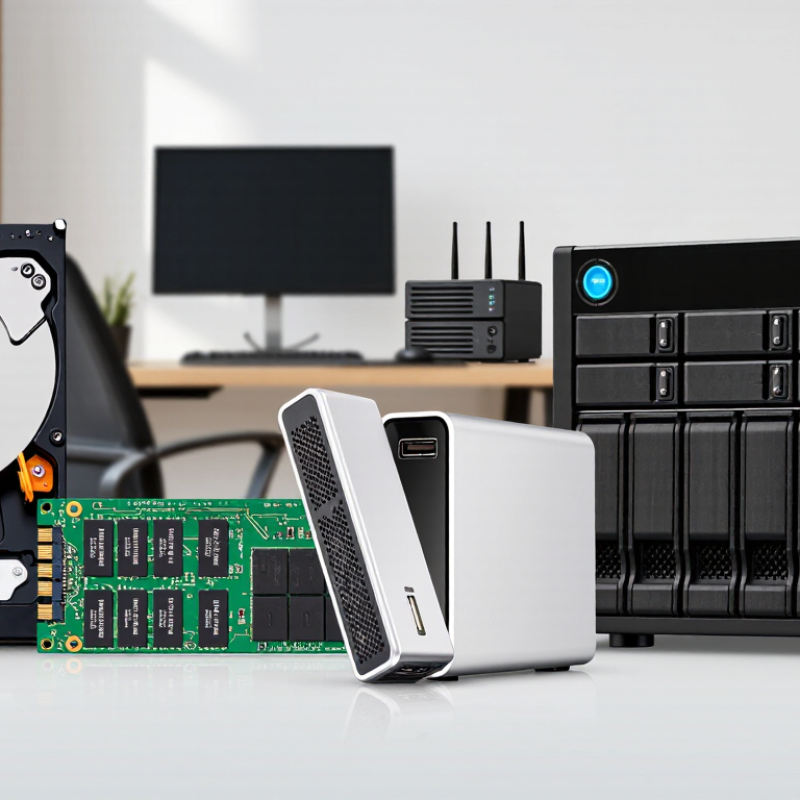
How Hard Drives Are Classified by Storage Technology
Hard drives are classified mainly by how they store information. A traditional hard disk drive records data magnetically on spinning platters. A small actuator moves read-and-write heads across their surfaces. You may hear the drive spin or click during heavy use. Because it has moving parts, access time can vary with where data sits.
A solid-state drive stores data in flash memory, with no spinning parts. Its controller manages writes and reads across memory cells. This usually makes file access quicker and quieter, though performance depends on the drive and workload. Hybrid drives combine magnetic platters with a smaller flash cache. Frequently used files may load faster, but the cache does not make every task behave like a fully solid-state drive. That distinction matters. The categories are useful, but not perfectly neat: interfaces and internal designs also affect real-world results. For a computer handling large photo archives, capacity may matter more than quick startup. For repeated app launches, flash storage can feel more responsive. Neither type replaces a separate backup; hardware can fail, sometimes without warning.
What Are the Top Types of Hard Drives? — How Hard Drives Are Classified by Storage Technology
| Drive Type | Storage Technology | Moving Parts | Key Strengths | Main Limitations | Common Uses |
| Hard Disk Drive (HDD) | Stores data magnetically on rotating platters. A read/write head accesses data on the platter surfaces. | Yes — platters spin and the head moves mechanically. | Often offers high capacity at a relatively low cost per unit of storage; well suited to large files and archives. | Mechanical movement generally makes it slower and more vulnerable to shock than solid-state storage. It can also produce noise and vibration. | Desktop computers, external storage, large media libraries, and backup systems. |
| Solid-State Drive (SSD) | Stores data in NAND flash memory cells and uses an electronic controller to manage access and data placement. | No — it has no spinning platters or moving read/write head. | Fast access, low latency, quiet operation, and better resistance to physical shock than a mechanical HDD. | Cost per unit of storage can be higher than for HDDs. NAND flash cells have finite write endurance, managed in part by the drive controller. | Operating-system drives, laptops, desktop computers, and applications that benefit from quick file access. |
| Hybrid Drive (SSHD) | Combines magnetic platters with a smaller amount of NAND flash, commonly used as a cache for frequently accessed data. | Yes — it includes the mechanical parts of an HDD. | Combines HDD-style magnetic storage with flash caching; frequently used data may load faster after the cache learns usage patterns. | Cache benefits vary by workload, and infrequently accessed data still relies on the mechanical portion. It is not equivalent to a full SSD. | Systems seeking a balance of larger capacity and improved access to frequently used files. |
SATA Solid-State Drives: Flash Storage Over SATA
SATA solid-state drives store data on flash memory, with no spinning platters or moving read head. Their familiar 2.5-inch form factor fits many desktop and laptop bays, making upgrades straightforward. The SATA III interface has a 6 Gb/s link rate, equivalent to a theoretical 600 MB/s after encoding. In practice, sequential transfers are usually lower, often around 500–560 MB/s. That is plenty for everyday booting, office work, and loading large photos. Not always. Newer interfaces can move data much faster, so SATA can feel like the bottleneck during heavy file transfers.
Reliability depends on the drive, workload, and operating conditions—not just the interface. Backblaze’s 2023 Drive Stats report recorded a 0.90% annualized failure rate across 3,144 SSD boot drives in its dataset. That result describes its observed drives, not every SATA SSD or a guarantee of lifespan. It is useful context, but the sample cannot settle every question. Check current specifications and keep separate backups of important files.
Tips: Confirm that your computer supports a 2.5-inch SATA drive, and check the available connector before buying. For daily use, a SATA SSD can be a sensible upgrade; for sustained, demanding transfers, its speed ceiling may disappoint.
NVMe Solid-State Drives: High-Speed Flash Storage Over PCIe
NVMe solid-state drives use flash memory and the NVMe protocol to communicate through PCIe, a high-bandwidth connection inside a computer. Unlike spinning hard drives, they have no moving read/write heads. Small files open quickly. Large game or video files can also load faster, depending on the drive and computer.
Speed figures can be misleading. A drive’s performance depends on its PCIe generation, the number of available lanes, and the task being run. Copying one large video file is different from opening thousands of small documents. Sustained transfers may slow when the drive gets hot or its cache fills. That detail is easy to overlook.
Check compatibility before choosing one. Some computers accept only certain drive lengths or PCIe generations, and compact laptops may have limited cooling. During installation, the narrow circuit board slots into a connector and is usually secured with a small screw. It should sit flat, not bend. For frequent large transfers, check sustained performance and temperature behavior, not just the headline speed. A faster drive can feel ordinary in everyday browsing, which is worth considering before paying extra.
NVMe SSDs: PCIe Bandwidth by Generation
The PCIe interface connects NVMe solid-state drives to a computer and enables high-speed data transfer.
The chart shows theoretical one-direction bandwidth for four-lane PCIe links: approximately 3.94 GB/s for Gen 3, 7.88 GB/s for Gen 4, and 15.75 GB/s for Gen 5. Actual SSD speeds are lower and vary with the drive, workload, and system.
External Hard Drives: Portable Storage for Different Drive Types
External hard drives usually use either a spinning hard disk drive or solid-state storage. Portable HDDs offer generous capacity for photo libraries, video archives, and backups. Their moving platters make them more vulnerable to knocks, especially while running. Portable SSDs have no moving parts, so they handle everyday travel better and often transfer files faster. They usually cost more per gigabyte. Small trade-off, big difference.
IDC’s Global DataSphere Forecast estimated that the world would generate 175 zettabytes of data in 2025. This was a forecast, not a count of files stored on external drives, but it shows why expandable personal storage matters. For a desk-bound archive, an HDD may be the practical choice. For frequent transfers between a laptop and camera, an SSD’s speed and shock resistance can save time. Still, a fast drive cannot fix a slow connection or a cluttered backup routine.
Some portable drives are simply internal SATA or NVMe drives placed inside an external enclosure. Check the drive’s interface, cable, and supported speeds together; a USB-C connector alone does not guarantee high transfer rates. I have seen buyers focus on advertised speed and overlook backup habits. Keep a second copy of irreplaceable files, and disconnect it when not in use. Small detail, often missed.

